

How To Uninstall Locked Apps On Android
We protect our smartphone apps and settings with Password locking app, such as AppLock. It increases smartphone security and anyone can't access our important data (Files, Music, Videos, Apps and settings without permission.
This protection can be unlocked by 1- Entering a correct password, 2- Password reset option, 3- Uninstalling AppLocking app.
The third trick will only work when we have not locked Smartphone Settings with the AppLock password. But will do, if we have also locked Smartphone Settings with the AppLock password. Can't do anything because we can uninstall AppLock from the App manager option and the App manager is available in the Smartphone Settings. Therefore when App Manager is locked with password then we can't uninstall it.
Related:
- Lock & Unlock apps with Avast Mobile Security AppLock,
- 5 Ways to unlock apps from AppLock.
- DoMobile AppLock: How to lock & Unlock android apps.
- How to unlock apps from 360 Security Applock.
If you are suffering from above problem, here I'm sharing a trick with which you can uninstall AppLocking app.
Page Contents
- Uninstall AppLock app when Settings is locked with Password
- How to Uninstall app using above apps?
- Also See:
- How to Uninstall app using above apps?
Uninstall AppLock app when Settings is locked with Password
Many times we install useless apps in our smartphone, and sometimes these useless apps will work in most cases, If you have any of following or same app installed in your smartphone, It can help you to uninstall the AppLock application or password protector apps without opening Smartphone Settings.
- Clean Master: It is a most popular smartphone cleaner app and comes with mostly smartphone pre-installed. So if you have Clean Master then try App manager option in Clean Master (Boost and app lock).
- Antivirus Application: An Antivirus application ( 360 mobile security, Avast free mobile security etc..) always comes with the App manager option. So you can uninstall AppLock apps with Antivirus Application manager program if you have already installed any Antivirus app.
- Uninstaller Application: If you have already Installed Easy Uninstaller App Uninstall, Uninstaller, etc. Then these can help to uninstall the AppLock application.
- Backup Application: We use Backup apps for backing up apps & data. These Apps also come with the App Manager option. eg. Super Backup: SMS and Contacts, App Backup & Restore, etc.
How to Uninstall app using above apps?
Open app>>Find App manager or Uninstall Manager or Backup manager>> Mostly apps have uninstalled button if don't have then press the apps for few moment and you will see Uninstall option. Tap on Uninstall.
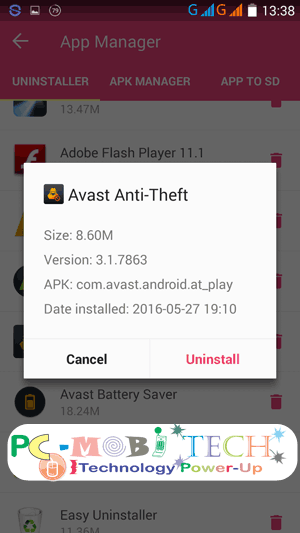
360 Security App Manager
Note: If you don't have above apps installed on your android smartphone. Then download from Google Play Store. Or Google Play Store is already locked then try to download from third party store eg: 9Apps, Mobogenie, APK Mirror etc. But for third-party app installation, you will need to enable Unknown Sources option.
If you don't have any above app installed then you have only one option left:
- Reset Smartphone after Locking with Applock app.
Helpful? Leave a reply in the comment box.
Also See:
- Unlock password protects Folder from Folder Lock.
- lock android apps with password Using 360 Security.
- Folder Guard Secret, Open Folder Without Password.
How To Uninstall Locked Apps On Android
Source: https://www.pcmobitech.com/android-app-locked-applock-uninstall/
Posted by: kellyeldis1975.blogspot.com
0 Response to "How To Uninstall Locked Apps On Android"
Post a Comment